Docker
Follow the installation instructions from the Docker website for your operating system. Once the Docker service is running, you can verify it with:
docker info

# or
docker version
Working with Images
Listing images
docker image ls
Pulling images
You can pull an image from Docker Hub before running it:
docker pull ubuntu:latest
Alternatively, docker run will pull the image automatically if it is not
already available locally.
Running an image
docker run -ti ubuntu:latest bash
docker run <image-id>
-ti stands for terminal interactive.
Saving an image from a container
To save the current state of a container as a new image:
docker commit <container-id>
You can also assign a name at the same time:
docker commit <container-id> <image-name>
To tag an existing image with a name:
docker tag <SHA-256-image-id> <my-image-name>
Deleting images
docker rmi <image-name>
Delete all dangling images:
docker rmi $(docker images --filter "dangling=true" -q)
Managing Containers
Listing containers
# running containers
docker ps

# all containers
docker ps -a

# last exited container
docker ps -l
Running a detached container
Start a container in the background with the -d flag:
docker run -d -ti ubuntu:latest bash
Attach to a running detached container:
docker attach <container-name-or-id>
To exit a container without killing the process, press Ctrl+P followed by Ctrl+Q.
Run and remove on exit
To automatically remove a container when it exits:
docker run --rm <image-name>
Accessing a running container's shell
docker exec -it <container-id> bash
Stopping containers
Stop a specific container:
docker kill <container-id>
Stop all running containers:
docker stop $(docker ps -a -q)
Deleting containers
Delete a specific container:
docker rm <id-or-name>
Delete all idle containers:
docker container prune -a
Networking
Using the host network
docker run -it --net=host centos bash
Port forwarding
Map a host port to a container port with -p:
docker run -ti -p 8888:8888 -v ${PWD}:/home jupyter bash
Setting a MAC address
docker run -it --mac-address 02:42:ac:11:0d:11 ubuntu bash
docker run -ti --rm --mac-address $(printf '02:42:ac:%02X:%02X:%02X' $[RANDOM%256] $[RANDOM%256] $[RANDOM%256]) ubuntu bash
Volumes & Environment Variables
Sharing volumes
You can share a folder between the host and the container using -v:
docker run -v /home/host/docs:/home -ti centos bash
docker run -v ${PWD}:/home -ti ubuntu bash
Passing environment variables
Use the -e flag to pass environment variables. Multiple -e flags are
supported:
docker run -ti -e LANG=C.UTF-8 -e TZ=Asia/Singapore ubuntu bash
Cleanup & Storage Management
Checking Docker storage usage
docker system df
Removing build cache
docker builder prune
docker builder prune -fa
Cleaning up volumes
docker volume prune -a
docker volume prune -af  # force, no confirmation guard
Reclaiming space immediately
After a cleanup operation, storage space may take several minutes to reflect. To reclaim it immediately:
docker run --privileged --pid=host --rm docker/desktop-reclaim-space
Full system prune
Delete all stopped containers and images:
docker system prune -a
Running GUI Apps on Docker
To run GUI applications inside Docker, you need an X window system. On Linux, X11 is available natively. On macOS, install XQuartz, and on Windows install Xming.
On macOS, allow connections from network clients in XQuartz preferences:
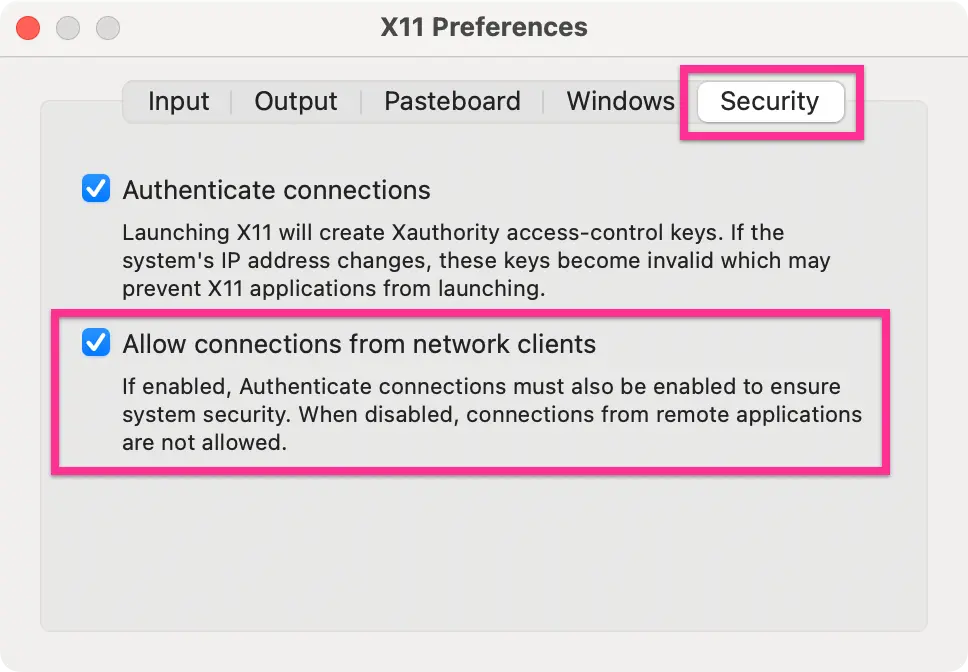
After launching XQuartz (you can launch it from the terminal with
open -a XQuartz), run xhost + or xhost + 127.0.0.1. More about the X
window system here.
# macOS
docker run --rm -tid -e DISPLAY=docker.for.mac.host.internal:0 ubuntu firefox

# Linux
docker run --rm -tid --net=host -e DISPLAY=:0 ubuntu firefox

# Windows
docker run --rm -tid -e DISPLAY=host.docker.internal:0 ubuntu firefox
This assumes the X version of Firefox is installed in the Ubuntu image.
Running Apache on Docker
Pull the CentOS image:
docker pull centos
Run and enter the container:
docker run -ti centos bash
Once inside, update the OS and install Apache:
sudo dnf install httpd
Commit the container and start Apache:
docker commit <container-id> centos
docker run --net=host centos httpd -D FOREGROUND &
Browsing your host IP address should now show the default Apache page. To stop the server, kill the container:
docker ps
docker kill <container-id>
Dockerfile
Below is an example Dockerfile:
# Start from Ubuntu 22.04 LTS
FROM ubuntu:jammy

# Update OS
RUN apt update \
 && apt upgrade -y

# Install software packages
RUN apt install -y python3 \
 && apt install -y python3-pip \
 && apt install -y git \
 && apt install -y fonts-open-sans

# Install pip packages
RUN pip3 install jupyterlab numpy scipy matplotlib

# bashrc settings
RUN echo 'alias jupyter-notebook="jupyter-notebook --allow-root --no-browser"' \
      >> $HOME/.bashrc

# Clone code from git repository
WORKDIR /root
RUN git clone https://github.com/pranabdas/arpespythontools.git

# Leave in `/home` which we can map with the host
WORKDIR /home
Build the image (assuming the file is named Dockerfile):
docker build -t arptools .
If the file has a different name:
docker build -t arptools -f arptools.dockerfile .
Launch the container:
docker run -ti --net=host -v /host/path:/home arptools bash
Adding a non-root user
Basic example:
RUN groupadd -r noroot && useradd -r -g noroot noroot

# Make owner of certain directory / executables
RUN chown -R noroot:noroot build_dir

# Set user
USER noroot
More detailed example using adduser (also check useradd --help):
ENV NON_ROOT_USER="noroot"
ENV NON_ROOT_USER_GROUP="noroot"
ARG NON_ROOT_USER_PASSWORD="SECRET-PASSWORD"

RUN groupadd -r $NON_ROOT_USER_GROUP -g 1000 \
  && useradd \
    --uid 1000 \
    --system \
    --gid $NON_ROOT_USER_GROUP \
    --create-home \
    --home-dir /home/$NON_ROOT_USER/ \
    --shell /bin/bash \
    --comment "non-root user" \
    $NON_ROOT_USER \
  && chmod 755 /home/$NON_ROOT_USER/ \
  && echo "$NON_ROOT_USER:$NON_ROOT_USER_PASSWORD" | chpasswd

USER $NON_ROOT_USER
Running chown on a large directory may increase the image size significantly.
In such cases, build the directory using another instance and copy it to the
new image using:
COPY --chown=noroot:noroot /home/build_dir /noroot/build_dir
Docker Compose
Docker Compose helps create, run, and manage the lifecycle of containers. For
example, the following docker run command:
docker run -d --name apache -p 8080:80 \
  -v ${PWD}/build:/usr/local/apache2/htdocs/ httpd:latest
translates to the following Compose specification:
services:
  apache:
    image: httpd:latest
    container_name: apache
    ports:
      - '8080:80'
    volumes:
      - ./build:/usr/local/apache2/htdocs
Navigate to the directory containing compose.yaml and run:
docker compose up
The website will be accessible at localhost:8080. To run in the background,
use the -d (detached) flag:
docker compose up -d
To force a rebuild containers before starting:
docker compose up -d --build
To stop or tear down services (down stops the container and removes it,
whereas stop only stops it):
docker compose stop
docker compose down
Restart a specific container:
docker compose restart <container-name>
Explore all available Compose commands with:
docker compose --help
Accessing a container shell
List running containers, then exec into the one you need:
docker ps
docker ps -a
docker exec -it <container-id> bash
Cleanup with Compose
Remove all images (works even when containers are not running):
docker compose down --rmi all
Remove volumes together with images:
docker compose down --rmi all -v
Remove only locally built images, leaving remotely pulled images (e.g.,
nginx) intact:
docker compose down --rmi local
Remove only volumes:
docker volume prune -fa
Docker Hub/ Container Registry
Logging in
docker login docker.io
Log in to the GitHub Container Registry using a personal access token:
echo $CR_PAT | docker login ghcr.io -u pranabdas --password-stdin
Pulling from GHCR
docker pull ghcr.io/<user-or-org-name>/<image>
docker pull ghcr.io/<user-or-org-name>/<image>:<tag>
Tagging and pushing a local image
docker tag localimage:latest username/localimage:latest
docker push username/localimage:latest
Transferring an Image Offline
Save an image to a file and load it on another machine:
docker pull ubuntu
docker save -o ubuntu_image.docker ubuntu
docker load -i ubuntu_image.docker
Using systemctl in Docker
See this project: docker-systemctl-replacement.